Installation and your first window
It’s assumed for the purpose of this tutorial that the user is familiar with and already has a working version of Ruby (at least v3.0). If you’re looking to setup a new Ruby version on your system I would recommend:
- On MacOS or Linux - try
mise, instructions at Installing Mise - On Windows - try RubyInstaller
The wxRuby gem is now packaged for Windows, Linux and MacOS. For most users this means that all you need is a simple gem command:
$ gem install wxruby3Further instructions on installation can be found at Installation of wxRuby3 at the Github home of wxRuby3.
Bottom line - if you have one of the following OS versions, there is no extra work for you! (table below reproduced from wxRuby INSTALL.md - courtesy of mcorino)
| OS | Distributions | Architectures | Rubies |
|---|---|---|---|
| Linux | OpenSuSE Leap (at least latest stable) | x86_64 and ARM64 | Latest stable Ruby |
| Linux | Fedora (at least latest stable) | x86_64 and ARM64 | Distro provided Ruby and Latest stable Ruby |
| Linux | Debian (at least latest stable) | x86_64 and ARM64 | Distro provided Ruby and Latest stable Ruby |
| Linux | Ubuntu (at least latest stable) | x86_64 and ARM64 | Distro provided Ruby and Latest stable Ruby |
| Windows | NA | x86_64 | Latest stable Ruby |
| OSX | MacOS 14 | ARM64 | Latest stable Ruby |
| OSX | MacOS 15 | x86_64 and ARM64 | Latest stable Ruby |
| OSX | MacOS 26 | x86_64 and ARM64 | Latest stable Ruby |
Your first window
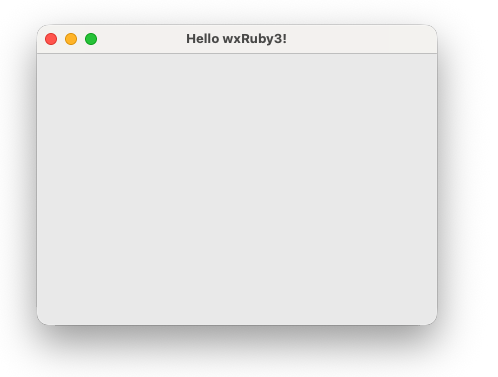
Create a file called hello.rb:
|
|
Run it:
$ ruby hello.rbA native, empty window should appear. That is a complete wxRuby3 application — an event loop is running, the window is responding to resize and close events, and the process will exit cleanly when you close the window.
A more structured first app
The one-liner above works, but real wxRuby3 apps use a class for the frame. Here is the pattern you will use throughout this series:
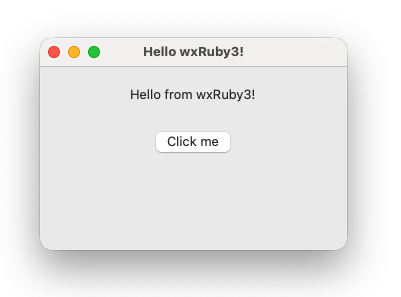
|
|
Run this and you have a window with a label, a button, and a working click handler that shows a native message dialog.
This is the skeleton of every wxRuby3 app you will write:
- A class inheriting from
Wx::Frame initializecallssuperwith the window title and size, then builds the widget tree- A
Wx::Panelimmediately inside the frame, widgets inside the panel - A sizer managing the layout (covered properly in Module 2)
evt_*methods registering handlers ininitialize- Handler methods defined privately
Save this file. You will modify it in the sampler lesson, and it is useful to have a working skeleton to hand throughout the series.
If something goes wrong
require 'wx' fails with a load error
The gem is installed but the native extensions are not built. Run wxruby setup.
wxruby: command not found
The gem’s executables are not on your PATH. Run gem environment to find the bin directory and add it to your shell profile. With rbenv or mise, try rbenv rehash or mise reshim.
The window appears but looks wrong (wrong colours, misaligned controls)
You are likely placing controls directly inside the frame rather than inside a panel. Always use Wx::Panel.new(self) and parent your controls to the panel.
Build fails on Linux with a missing header The wxWidgets development libraries are not installed. You can find further instructions at Installation of wxRuby3